Guide
Wake your gaming PC for Moonlight or Steam Link from your iPhone
Your gaming PC sleeps at home, and Moonlight or Steam Link on your iPhone needs it awake. Moonlight's own wake often does nothing on an iPhone, or works one day and not the next. Here is why, how to set the PC up once, and how to wake it, see that it is ready to stream, and open Moonlight in one tap.
1. Why the wake from Moonlight fails on an iPhone
A sleeping PC listens for one message, the Magic Packet: six FF bytes, then its network card's MAC address 16 times. The packet usually goes to every device on the network at once (a broadcast), and only the card with that MAC address wakes its PC.
Moonlight sends the packet to the address 255.255.255.255 and to the PC's own addresses. On an iPhone, iOS refuses the first unless the app holds a permission that Apple grants on request (the multicast networking entitlement). The second works only while your iPhone still remembers the sleeping PC, for about 20 minutes. That is the wake that worked yesterday and not today.
Radien holds that permission. It sends the packet to your network's own broadcast address, which needs no memory of the PC, and then watches the PC to see whether it woke.
2. Set the PC up once
Radien's help sheet has these steps for Windows, a Mac, Linux and a NAS (in Wake on LAN, tap the ⓘ button). For a Windows gaming PC:
- In the BIOS or UEFI, turn on Wake on LAN. It can be called Power On by PCI-E.
- In Device Manager, open the network card. In Power Management, turn on Allow this device to wake the computer. In Advanced, turn on Wake on Magic Packet.
- Turn off Fast startup: Control Panel, Power Options, Choose what the power buttons do.
- Connect it with a cable: a wake over Wi-Fi rarely works.
- Give it a fixed address on your router (a DHCP reservation), so Radien watches the right one.
- Let it sleep rather than shut it down. After a shut down, Steam Remote Play works only once someone has signed in to Windows.
To wake it from shut down too, turn off ErP or EuP in the BIOS or UEFI (on some computers, Deep Sleep): it cuts the network card's power when the PC is off. And keep it plugged in: on a switched-off power strip, the card cannot listen.
Its MAC address: in Command Prompt, ipconfig /all shows a Physical Address for each card. Use the card that has the cable.
3. Wake it, and see that it woke
In Radien, open Wake on LAN and tap Add Device. Type a Name, such as Gaming PC, its MAC Address, and its Address, the fixed one from your router. Without an address, Radien sends the packet but cannot watch the PC wake.
With Radien Pro, set Also Check to Moonlight (47989) or Steam (27036). A PC can answer ping before Sunshine or Steam is ready to stream, so with one of them chosen, Radien waits for that port. Sunshine and Apollo use port 47989 for Moonlight by default.
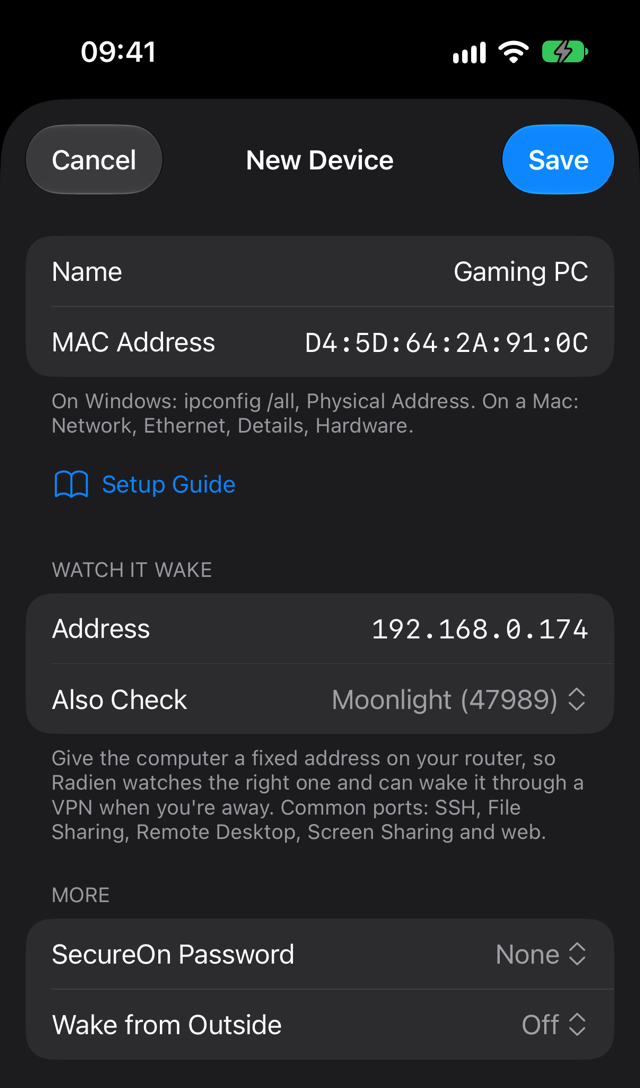
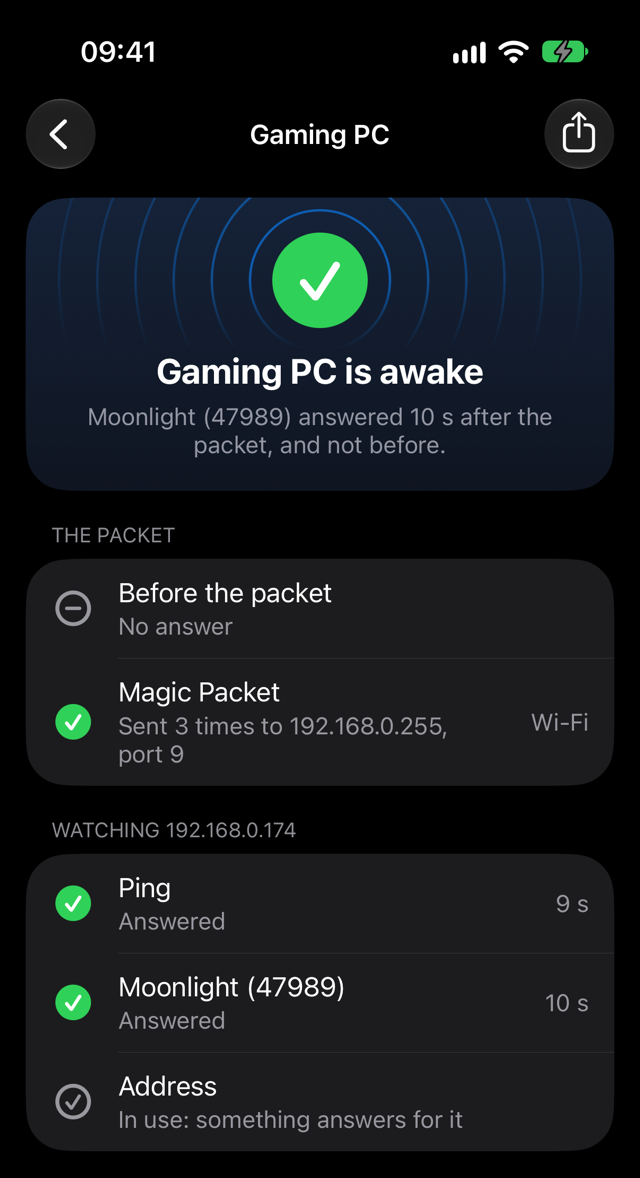
Tap Wake. Radien checks first, sends the packet, then watches for up to 2 minutes. The first time, iOS asks whether Radien may find and connect to devices on your local network: allow it. Then you see one of these:
- Gaming PC is awake: it answered after the packet, and not before. With Moonlight in Also Check, the screen says "It answered ping. Radien waits for Moonlight (47989)." until that port answers too. If it never does, the screen still ends on "Gaming PC is awake", from ping alone, and the Moonlight (47989) row reads "No answer": Sunshine may not be running, or the PC's firewall may block that port.
- Gaming PC answered before the packet: it was already awake. Radien sent the packet anyway.
- Gaming PC did not answer: something holds its address, but nothing answered. It may be awake behind a firewall that blocks ping: Windows blocks ping by default. With Radien Pro, choose Moonlight or Steam in Also Check: your stream already reaches that port.
- No answer from Gaming PC: What to check lists the usual causes: the cable, the BIOS, Fast startup, the MAC address, the power. With Moonlight chosen, it also asks "Is Sunshine running on the computer?", and with Steam, "Is Steam running, with Remote Play on?"
All four follow one rule from the help sheet: "Sent is not awake. Only an answer from the computer shows that it woke."
4. One tap: wake, then open Moonlight
Radien's Wake Device action for Shortcuts runs the same wake with a 20-second watch, and gives a result the next action can check: Answered, No Answer, Sent, Not Watched or Not Sent. It is free for your first device.
- Open Shortcuts and tap +. If it offers "Describe a shortcut", tap Edit instead: a described shortcut does not use Radien's actions.
- Search for Wake Device and tap it. Tap Device and choose your PC.
- Add If, and set it to read If Wake Device is Answered (tap Choose to pick it).
- Add Open App. It lands after End If: touch and hold it, and drag it up between If and Otherwise. Tap App and choose Moonlight or Steam Link.
- Tap the arrow beside your PC's name, and turn off Show When Run. While it is on, as iOS sets it, the shortcut stops on Radien's answer until you tap Done.
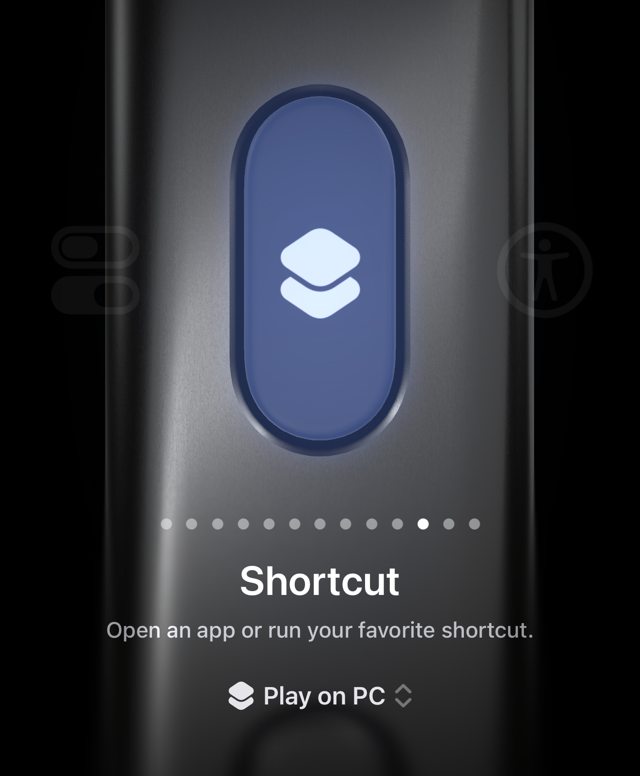
- Tap the shortcut's name at the top, then Rename, and call it Play on PC, for example. Run it from its tile, put it on your Home Screen (Add to Home Screen in the same menu) or on the Action button (Settings, Action Button, Shortcut), or ask Siri: "Play on PC".
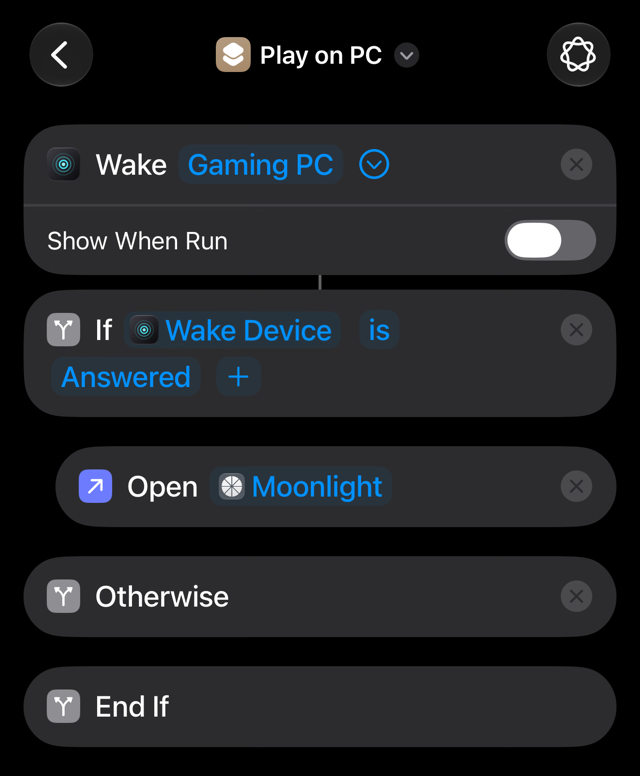
Answered means the PC answered. With Moonlight in Also Check, Radien waits for its port within those 20 seconds; if only ping answered by then, the result is still Answered, and Moonlight may need a few seconds more to find the PC. A PC that was already awake is Answered too.
With Radien Pro, Radien's own control wakes the PC from Control Center or the Lock Screen too. It opens Radien on the PC's wake screen; the shortcut is the way on to Moonlight.
5. Away from home
Wake on LAN works inside your home network. From outside, the packet needs a way in. Radien Pro has two, and each has a limit.
- Through your own VPN: if a VPN reaches your home network (WireGuard or Tailscale on your router, or on a Raspberry Pi or a NAS that stays on), the PC's card says "Wakes through your VPN". Moonlight's own wiki suggests such a VPN first. Radien sends the packet through it to the PC's address, which the device at home passes on only while it still knows the sleeping PC (a static ARP entry there fixes that), and to your home network's broadcast address, which some of those devices pass on (Tailscale on a Mac does, and Linux with bc_forwarding on). A VPN on the PC alone cannot help: it sleeps with the PC.
- Through your router: forward a UDP port to the PC, then turn on Wake from Outside in Edit Device. The router forgets a sleeping PC after a while, and the forward then stops working (Moonlight's wiki says after about two hours). The fixes: a static ARP entry for the PC on the router, the router's own Wake on LAN, or a forward to your network's broadcast address, if the router allows it. From outside, Radien sees the PC only through a port the router forwards to it. Behind an address your provider shares (CGNAT), nothing from outside reaches your router.
6. What Radien cannot do
- Wake a PlayStation or an Xbox. Their own apps wake them, with your account.
- Put the PC back to sleep after you play. That needs software on the PC itself.
- Wake a PC whose network card has no power: a switched-off power strip, or ErP on in the BIOS.
- See a wake that answers nothing. A PC that wakes but answers neither ping nor the ports Radien checks looks the same as one that slept on.
What you now know
Why Moonlight's wake fails on an iPhone: iOS refuses its broadcast and soon forgets a sleeping PC. What the PC needs once: Wake on LAN in the BIOS and on the card, Fast startup off, a cable, a fixed address, and sleep rather than shut down. And the difference between sent and awake: Radien sends the packet, then tells you whether the PC answered, and with Radien Pro whether Moonlight's or Steam's port did.
Wake on LAN is free in Radien for one computer, with Siri and Shortcuts. Radien Pro is a one-time purchase, no subscription.