Guide
Check whether your computer is awake, without waking it
Did the PC go to sleep, or is it still on? Radien can look for an answer from it without sending a Magic Packet: Check Now in the app, and Check Device for Siri and Shortcuts. Here is what each answer means, why silence does not always mean asleep, and a check at night that tells you a PC is still on.
1. Why ping alone is not enough
To see whether a computer is awake, Radien sends it ping, and tries its ports. Neither one alone is a sure sign:
- A computer that is awake can stay silent to ping. Windows blocks ping by default, and so does a Mac in Stealth Mode.
- A computer that sleeps can still answer ping. Some network cards answer for a sleeping computer, and so can a sleep proxy on the network.
- A port that answers is the better sign: a program on the computer is running. By default Radien tries common ports: SSH, File Sharing, Remote Desktop, Screen Sharing and Web. With Radien Pro, you can choose the port the computer serves in Also Check, such as Moonlight's.
2. Check Now in Radien
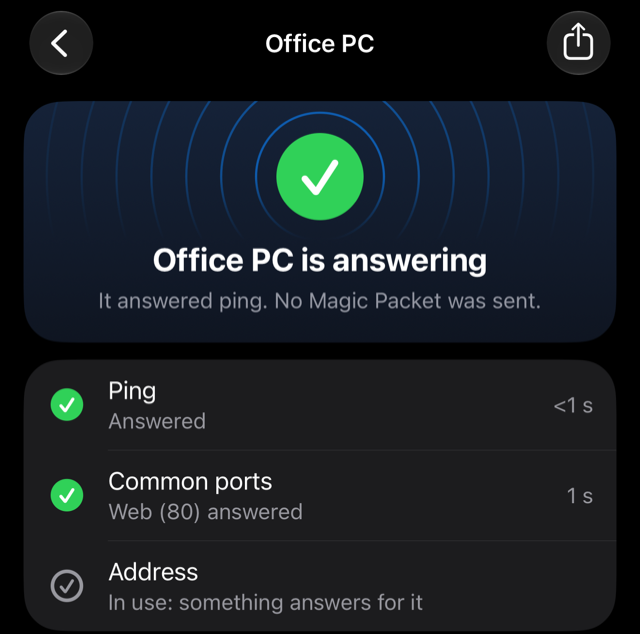
In Radien, open Wake on LAN, touch and hold the computer's card, then tap Check Now. Radien sends no Magic Packet. It shows what answered: ping, a port, or something that holds the computer's address but stays silent.
3. Check Device, for Siri and Shortcuts
Say "Check Office PC with Radien" to Siri, or use the Check Device action in Shortcuts. Radien looks for an answer for 10 seconds, says one sentence, and gives a result that an If can test: Answering, No Answer or Not Checked.
- "Office PC is answering: Web (80) answered." Answering. A port answered, so a program on the computer is running.
- "Office PC answered ping, but no port did. A sleeping computer's network card can answer ping." Answering too, from ping alone. To tell awake from asleep, choose a port the computer serves in Also Check.
- "Something holds the address of Office PC, but nothing answered in 10 seconds." No Answer. It may be asleep, or awake behind a firewall that blocks ping.
- "Nothing answered for Office PC in 10 seconds." No Answer.
- "Office PC has no address saved, so there is nothing to check." Not Checked. Add its address in Edit.
4. A check at night
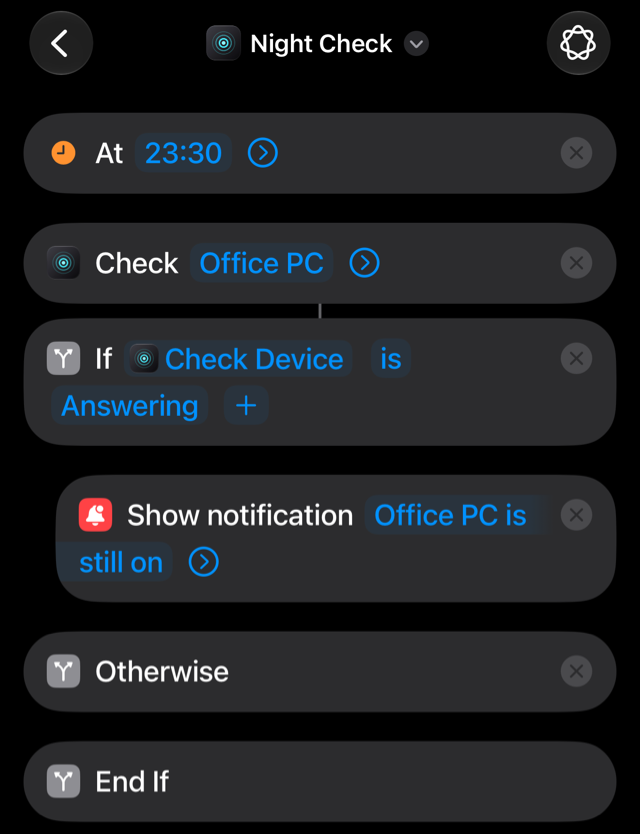
This automation looks at the PC at 23:30 every day, and tells you only when it is still on. Radien cannot put it to sleep, but you will know that it is on.
- Open Shortcuts. In Library, tap Automation, then +. iOS 27 offers "Describe a shortcut" first: tap Edit instead, since a described shortcut does not use Radien's actions.
- Tap Automation above the actions, then Time of Day. Tap Time and set 23:30.
- In Search, type Check Device, and tap your computer.
- Add If. It reads If Check Device is Choose: tap Choose, then Answering.
- Add Show Notification. It lands after End If: touch and hold it, and drag it up between If and Otherwise. Shortcuts fills its text with Check Device: delete that, and type your own, such as Office PC is still on.
- Tap the name at the top, then Rename, and call it Night Check.
When you run it yourself from Shortcuts, the check's answer stays on screen until you tap Done: Show When Run is on, as iOS sets it. To run straight through, tap the arrow beside the computer's name and turn it off.
5. What a check cannot tell you
- Whether a silent computer is asleep. It may be awake behind a firewall.
- Whether a computer that answers ping alone is awake. Its network card may answer for it.
- From outside your network, anything that your router or VPN does not pass on. Through your router, Radien sees only the port the router forwards to the computer.
- Put the computer to sleep or shut it down. That needs software on the computer itself.
What you now know
How to look for an answer without waking the computer: Check Now in Radien, and Check Device for Siri and Shortcuts, both with Radien Pro. And how to read it: a port that answers means a program runs, ping alone can come from a sleeping network card, and silence can be a firewall. Choose the port your computer serves in Also Check, and the answer becomes a sure one.
Wake on LAN is free in Radien for one computer, with Siri and Shortcuts. Check Now and Check Device are part of Radien Pro, a one-time purchase, no subscription.