Guide
Wake your computer with Siri
Your computer sleeps at home, and you want it awake without opening an app. Ask Siri: Radien wakes the computer in the background, watches for its answer, and Siri tells you what happened. Here are the phrases, what each answer means, and the one step you take in the app first.
1. Set it up once
In Radien, open Wake on LAN and tap Add Device. Give the computer a Name that is easy to say, such as Office PC: Siri matches your words to the names you saved. Add its MAC Address and its Address. Without an address, Radien sends the packet but cannot watch the computer wake. If the computer is not set up for Wake on LAN yet, Setup Guide in the same form has the steps for Windows, a Mac, Linux and a NAS.
Then tap Wake once in Radien. The first time, iOS asks whether Radien may find and connect to devices on your local network: allow it. iOS asks this question only while the app is open, so Siri cannot ask it for you. Until you have answered it, Siri says: "To wake Office PC, Radien needs local network access, and iOS asks for it only in the app. Open Radien and tap Wake there once."
2. What to say
- "Wake Office PC with Radien" or "Wake Office PC in Radien": wakes that computer. Say the name you saved.
- "Wake a computer with Radien": Siri asks "Which device?", and you say the name.
- "Check Office PC with Radien" or "Check Office PC in Radien": looks for an answer without waking the computer. This one needs Radien Pro: check whether your computer is awake.
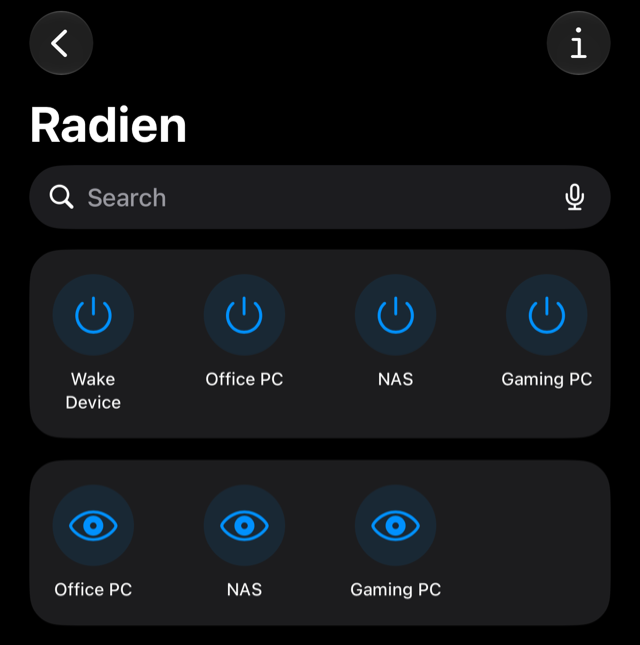
Every phrase names Radien: that is how Siri knows which app to ask. For words of your own, make a shortcut with Radien's Wake Device action and give it a name, such as Play on PC. The name is then the phrase. The gaming PC guide builds one step by step.
3. What Siri answers
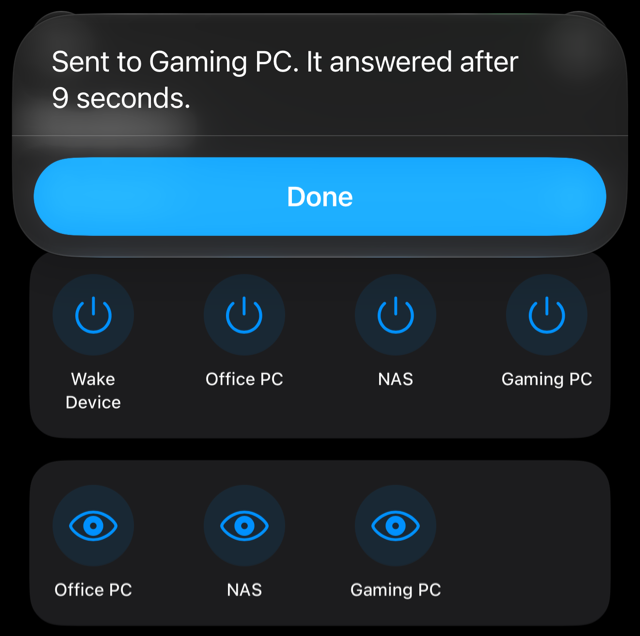
Radien checks the computer first, sends the Magic Packet, and then watches for 20 seconds. Siri then says one sentence:
- "Sent to Office PC. It answered after 9 seconds." It woke: it answered after the packet, and not before.
- "Office PC answered before the packet. Radien sent it anyway." It was already awake.
- "Sent to Office PC. No answer in 20 seconds. A computer that was shut down can need longer." Ask again in a minute. Radien checks before it sends, so if the computer woke in the meantime, Siri says it answered before the packet. In Radien itself, a wake watches for up to 2 minutes.
- "Sent to Office PC. Something holds its address, but nothing answered in 20 seconds." It may be awake behind a firewall that blocks ping: Windows blocks ping by default. With Radien Pro, choose a port it serves in Also Check.
- "Sent to Office PC. It has no address saved, so Radien cannot watch it wake." Add its address: in Wake on LAN, touch and hold the computer's card, then tap Edit.
- "Office PC was saved on another network, so nothing was sent. Wake it in Radien to send it here." Your iPhone is on another network than the one you saved the computer on. A Magic Packet reaches only the network it is sent on.
- "Waking NAS needs Radien Pro. Without it, Radien wakes only the first device saved." Siri and Shortcuts are free for the first computer you saved.
Radien keeps each answer. The computer's card in Wake on LAN shows the last one with its time, and so does the Wake on LAN widget.
4. If Siri does not know the phrase
- In Shortcuts, open Library, tap Radien under Apps, then the ⓘ button. In Radien Shortcuts, Siri must be on.
- Say the name exactly as you saved it, or say "Wake a computer with Radien" and give the name when Siri asks.
- If Siri keeps mishearing a name, give the computer another one in Radien: touch and hold its card, then tap Edit.
5. What Siri cannot do
- Watch for more than 20 seconds. iOS gives an app's action about 30 seconds, and Siri needs part of that time to answer. For a computer that was shut down, ask again, or wake it in Radien.
- Ask iOS's local network question. Only the app can, so the first wake happens in Radien.
- Wake a computer from outside its network on its own. Away from home, the packet needs a way in: your own VPN, or your router, with Radien Pro (away from home).
- Answer in Siri's language when Radien uses another one. Siri says Radien's words in the language chosen in Radien's Settings, with Siri's own voice.
What you now know
The phrases: "Wake Office PC with Radien", or "Wake a computer with Radien" and then the name. The one step in the app: tap Wake there once, so iOS can ask for local network access. And the difference between sent and answered: Siri tells you which one happened.
Wake on LAN is free in Radien for one computer, with Siri and Shortcuts. Radien Pro is a one-time purchase, no subscription.