Guide
Wake your computer at a set time every day
Your PC can be awake before you sit down at it. A Shortcuts automation runs Radien's Wake Device action at the time you choose, on the days you choose, even while your iPhone is locked. Here is how to make one in iOS 27, and how to see that it ran.
1. Before you start
- Save the computer in Radien: open Wake on LAN and tap Add Device, with its MAC address and its address.
- Tap Wake there once. The first time, iOS asks whether Radien may find and connect to devices on your local network: allow it. iOS asks only while the app is open, so an automation cannot ask for you.
- Wake Device is free for the first computer you saved. Other computers need Radien Pro.
2. Make the automation
In iOS 27, an automation is a shortcut with a trigger at its top.
- Open Shortcuts. In Library, tap Automation, then +.
- iOS offers "Describe a shortcut" first: tap Edit instead. A described shortcut does not use Radien's actions.
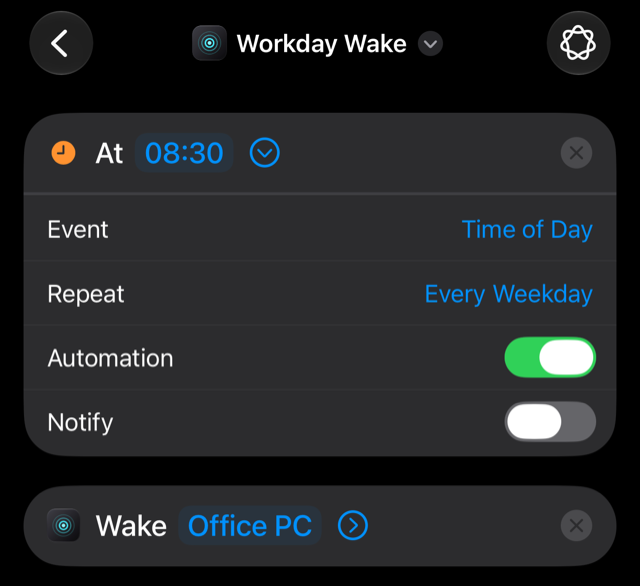
- Tap Automation above the actions, then Time of Day. Tap Time and set it, such as 08:30.
- Tap the arrow beside the time. Repeat reads Every Day. To choose the days, tap it, set Frequency to Weekly, and tick them, such as Monday to Friday (today is ticked already). Then tap the check mark at the top right.
- Leave Automation on. Turn on Notify if you want a notification each time it runs, such as "Running Workday Wake". Notify adds a Confirm Before Run switch: leave it off, or iOS asks you before each run.
- In Search, type Wake Device, and tap your computer.
- Tap the name at the top, then Rename, and call it Workday Wake, for example.
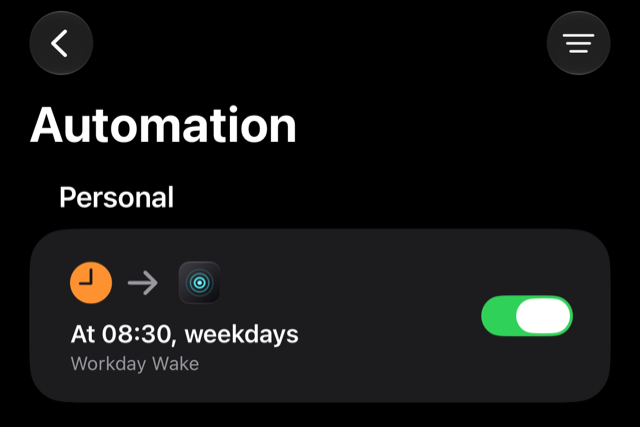
In the Automation list, it then reads "At 08:30, weekdays", with a switch to pause it.
3. How you know it ran
Radien keeps each computer's last answer with its time. In Wake on LAN, the computer's card then reads, for example, "Awake after 12 s, 08:30", or "Answered before the packet, 08:30" if it was already awake. The widget shows the same answer on your Home Screen.
As with Siri, Wake Device watches for 20 seconds after the packet. A computer that was shut down can need longer: then its card reads "No answer", and it may still wake a little later.
4. Another idea: a check at night
The same trigger can run Radien's Check Device instead, such as at 23:30, and show a notification only when the PC is still on. Check Device is part of Radien Pro: check whether your computer is awake builds it step by step.
5. What an automation cannot do
- Wake a computer while your iPhone is on another network. A Magic Packet reaches only the network it is sent on, so Radien sends nothing there. Away from home, the packet needs your own VPN or your router, with Radien Pro (away from home).
- Ask iOS's local network question. Only the app can, so the first wake happens in Radien.
- Be built by "Describe a shortcut". Radien's actions are added in the editor.
- Watch for more than 20 seconds. iOS gives an app's action about 30 seconds.
What you now know
How to make the automation in iOS 27: Automation, +, Edit, Time of Day, the days, then Wake Device. Where to see that it ran: the computer's card and the widget keep the last answer with its time. And that the packet goes only on the network your iPhone is on at that moment.
Wake on LAN is free in Radien for one computer, with Siri and Shortcuts. Radien Pro is a one-time purchase, no subscription.