Guide
Wake your computer from a widget on your iPhone or your Mac
Radien's Wake on LAN widget shows your computers on the Home Screen, each with its last answer and a button that wakes it. Your Mac can show the same widget on its desktop. Here is how to add it, what it shows, and what happens when you tap it.
1. Add the widget
The widget is part of Radien Pro. Without it, the widget says "Wake your computers from the Home Screen with Radien Pro." and a tap opens Radien Pro's page.
- Touch and hold an empty part of the Home Screen until the icons jiggle.
- Tap the brush button at the top left, then Add Widget.
- In Search Widgets, type Radien, and tap it.
- Swipe to a size, then tap Add Widget. The small one shows one computer, the medium one up to three, the large one up to six, under a Wake on LAN title. Each shows fewer when their words need the room; the large one then says how many more there are.
- Tap the check mark at the top right.
2. Choose the computers
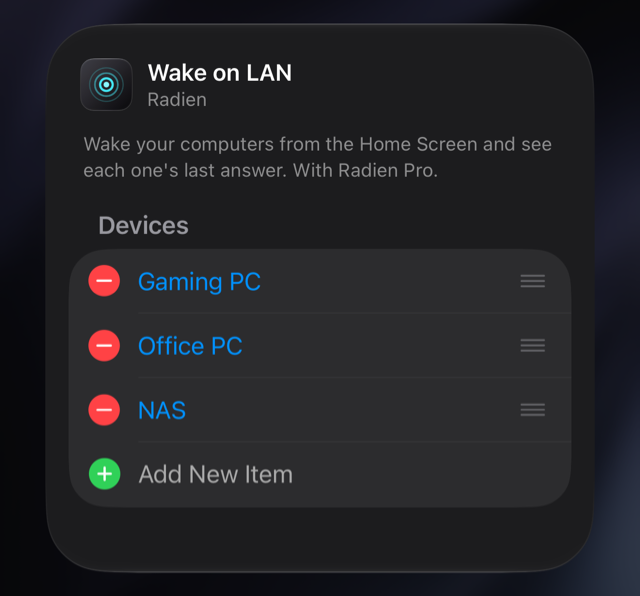
At first, the widget shows your computers in the same order as Radien. To choose them, touch and hold the widget, then tap Edit Widget. Under Devices, tap Add New Item and choose a computer. Drag a row by its handle to change the order, or tap − to take it out. The same menu has a row of sizes at the top, if you want another size.
3. What the widget shows, and what a tap does
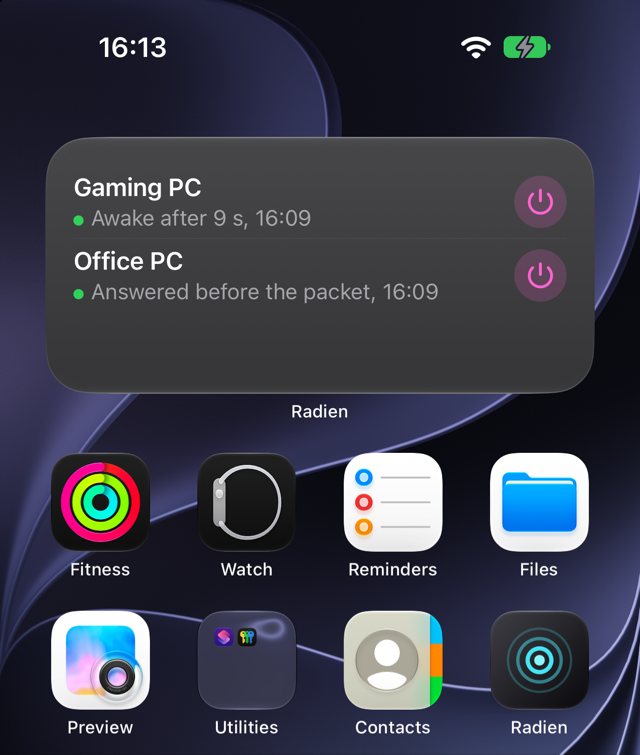
Each row shows a computer's last answer and its time, such as "Awake after 9 s, 16:09", "Answered before the packet, 16:09" or "No answer, 16:10", with a green dot when it answered and a red one for No answer. The answer comes from any wake or check: in Radien, from Siri, a shortcut, the control or an automation.
- The power button: Radien opens on that computer's wake screen and wakes it. It checks the computer, sends the Magic Packet and watches for up to 2 minutes, so you see whether it woke.
- Anywhere else: Radien opens on its list of computers.
4. On your Mac
A Mac shows the widgets of an iPhone that is signed in to the same Apple Account and nearby. On macOS 27:
- Open System Settings, then General, then AirDrop & Continuity. Under Widgets & iPhone Mirroring, turn on iPhone Widgets.
- Control-click the desktop, then choose Edit Widgets… in the menu.
- Search for Radien, and click it. At the top right, choose From iPhone. If Radien is installed on the Mac too, On This Mac beside it shows that copy's widgets.
- Drag the size you want to the desktop, then click Done.
It shows the same computers and answers as on the iPhone. A click on a power button runs on the iPhone: the iPhone may ask for Face ID, Radien opens there and wakes the computer, and the widget on the Mac shows the new answer.
5. What the widget cannot do
- Wake in the background. A tap opens Radien, so the wake runs where you can see it. To wake without opening an app, ask Siri.
- Sit on the Lock Screen. There, use the control.
- Watch the computer by itself. It shows the last answer Radien saw, not whether the computer is awake now. To find out without waking it, use Check Now.
- Wake from your Mac without your iPhone. An iPhone widget on a Mac runs its actions on the iPhone.
What you now know
How to add the widget (Add Widget, Radien) and choose its computers (Edit Widget, Devices), how to show it on your Mac (AirDrop & Continuity, iPhone Widgets), and how to read it: each row is the last answer Radien saw, with its time. A green dot means the computer answered; a packet that was only sent does not make one.
Wake on LAN is free in Radien for one computer, with Siri and Shortcuts. The widget is part of Radien Pro, a one-time purchase, no subscription.