Guide
Wake your computer from Control Center, the Lock Screen or the Action button
One press, and Radien opens on the computer's wake screen and wakes it, so you see it wake. Radien's Wake Device control can sit in Control Center, on the Lock Screen and on the Action button. Here is how to add it in each place, and what a press does.
1. Before you start
- The control is part of Radien Pro. Without it, a press opens Radien Pro's page in Radien.
- Save the computer first: in Radien, open Wake on LAN and tap Add Device.
- One control wakes one computer. For two computers, add the control twice.
2. In Control Center
- Swipe down from the top right corner of the screen.
- Tap + at the top left, then Add a Control at the bottom.
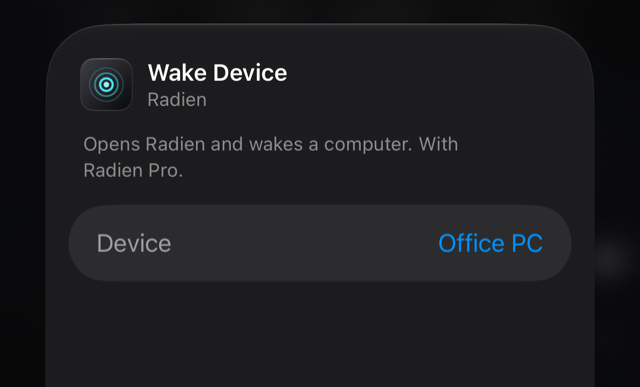
- In Search Controls, type Radien, then tap Wake Device.
- Beside Device, tap Choose, and choose the computer.
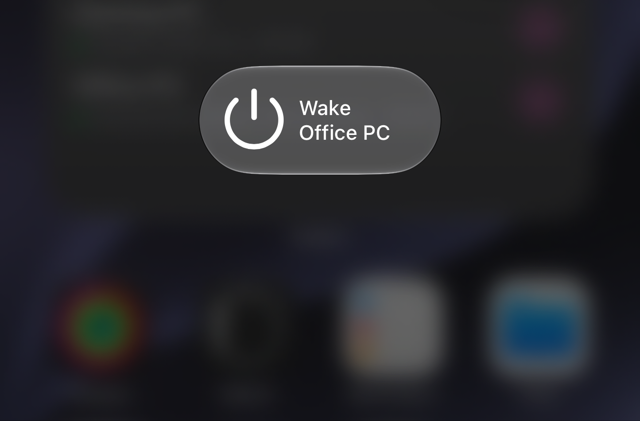
- The control takes one space and shows only its power symbol. To show the computer's name too, drag the handle at its corner to make it two spaces wide. Tap an empty space to finish.
3. On the Lock Screen
- Touch and hold the Lock Screen, then tap Customize. If iOS offers Lock Screen and Home Screen, choose Lock Screen.
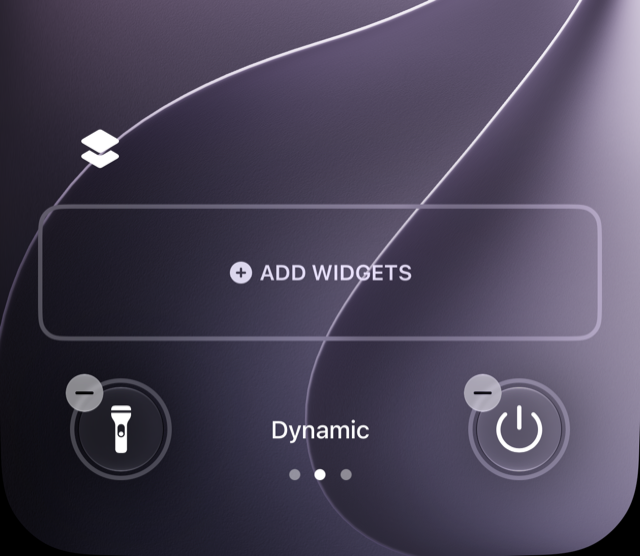
- At the bottom, tap the − on a control to take it away, then tap the empty + in its place.
- In Search Controls, type Radien, then tap Wake Device.
- Beside Device, tap Choose, and choose the computer. Tap Done.
On the Lock Screen, a press asks for Face ID first. Then Radien opens and wakes the computer.
4. On the Action button
iPhone 15 Pro, iPhone 15 Pro Max and every iPhone since the iPhone 16 have an Action button.
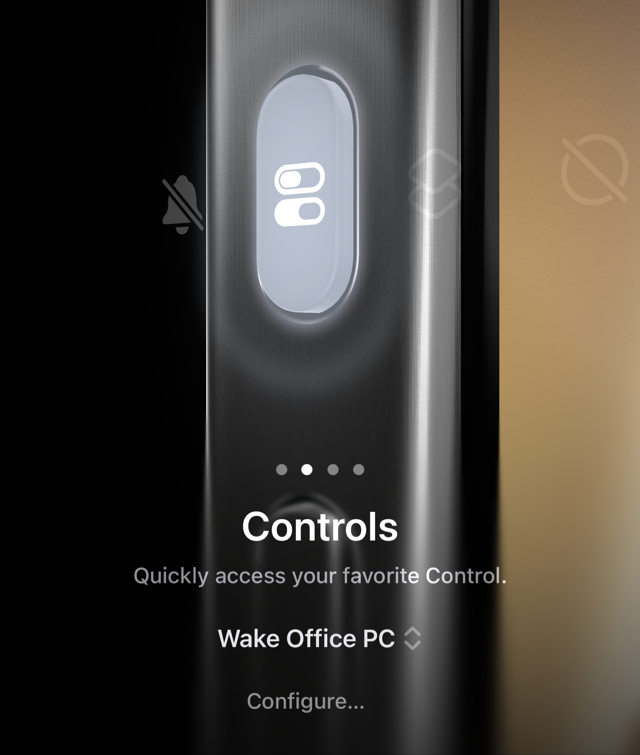
- Open Settings, then Action Button. Swipe to Controls.
- Tap Choose a Control…, type Radien in Search Controls, then tap Wake Device.
- Beside Device, tap Choose, and choose the computer. Under Controls, the button then reads Wake Office PC. If it still reads Wake on LAN, tap Configure… and choose the computer again: without one, a press opens Radien's list of computers.
- To wake, press and hold the Action button.
5. What a press does
Radien opens on that computer's wake screen and starts the wake: it checks the computer, sends the Magic Packet, and watches for up to 2 minutes, on screen. The first time, iOS asks whether Radien may find and connect to devices on your local network: allow it. Then you see one of four answers:
- Office PC is awake: it answered after the packet, and not before.
- Office PC answered before the packet: it was already awake. Radien sent the packet anyway.
- Office PC did not answer: something holds its address, but nothing answered. It may be awake behind a firewall that blocks ping.
- No answer from Office PC: What to check lists the usual causes: the cable, Wake on LAN in the BIOS or UEFI, the MAC address, the power.
6. The control, or a shortcut?
The control always opens Radien, so the wake runs where you can see it. To wake a computer without leaving what you are doing, put a shortcut on the Action button instead: Settings, Action Button, Shortcut, with Radien's Wake Device action inside it. A shortcut runs in the background, watches for 20 seconds, and is free for your first computer. The gaming PC guide builds one, and Siri runs the same action.
7. What the control cannot do
- Wake in the background. A press always opens Radien.
- Show whether the computer is awake. It is a button; the widget shows each computer's last answer.
- Wake without Radien Pro. A free user's press opens Radien Pro's page.
- Wake a computer from outside its network on its own. Away from home, the packet needs your own VPN or your router (away from home).
What you now know
Where the control goes: Control Center (+, Add a Control), the Lock Screen (Customize) and the Action button (Settings, Action Button, Controls), each time through Wake Device and the computer you choose. And what a press does: Radien opens and wakes that computer on screen, so you see whether it answered, not only that the packet was sent.
Wake on LAN is free in Radien for one computer, with Siri and Shortcuts. The control is part of Radien Pro, a one-time purchase, no subscription.